
AI connector setup
Connect your AI app to Allied Healthcare Jobs to search for jobs, ask about specific roles, and track where you’ve applied.
Before you start
Section titled “Before you start”- Sign in to your Allied Healthcare Jobs account when your AI app asks you to connect. Job search is free. Every other tool requires an active trial or premium membership. Starting a trial requires a card.
- Set up browser-based apps on a computer. After setup, the connector also works in the Claude phone app.
- Copy the connector address for Allied Healthcare Jobs. You’ll paste it into your AI app below.
https://alliedhealthcarejobs.com/mcpChatGPT
Section titled “ChatGPT”ChatGPT calls an AI connector a plugin. Set it up once on the ChatGPT website.
For guided setup, open the prepared prompt. ChatGPT will walk you through one step at a time.
Start guided setup in ChatGPTCopy the setup prompt
Help me connect Allied Healthcare Jobs to ChatGPT. Walk me through the steps below one at a time and wait for my reply after each step. Give me the exact field values to copy when I need them.
On a computer, open [ChatGPT Plugins](https://chatgpt.com/plugins).
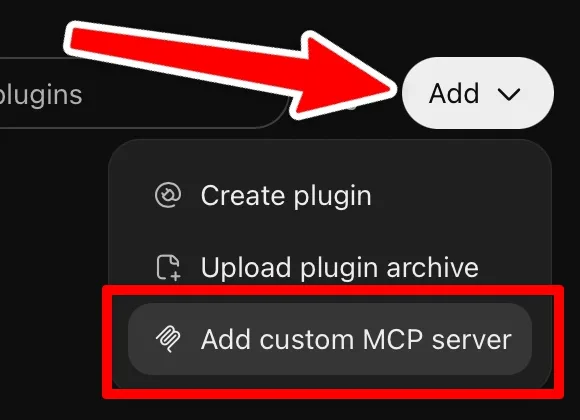
Open **Add** and choose **Add custom MCP server**.
Paste the name below into **Name**. Under **Connection**, select **Server URL** and paste the address below.Name: Allied Healthcare JobsConnection: https://alliedhealthcarejobs.com/mcp
Leave **Authentication** set to **OAuth**. Check **I understand and want to continue**, then click **Create as a plugin**.
Start a new chat. Type **@** and pick **Allied Healthcare Jobs**. Then ask for jobs.
Once connected, help me test it by searching for a job.
Manual setup
-
On a computer, open ChatGPT Plugins.
-
Open Add and choose Add custom MCP server.
-
Paste the name below into Name. Under Connection, select Server URL and paste the address below.
Name Allied Healthcare JobsConnection https://alliedhealthcarejobs.com/mcp -
Leave Authentication set to OAuth. Check I understand and want to continue, then click Create as a plugin.
-
Start a new chat. Type @ and pick Allied Healthcare Jobs. Then ask for jobs.
Claude
Section titled “Claude”Claude calls it a connector. Add it once, and it works on claude.ai, the desktop app, and the phone app.
For guided setup, open the prepared prompt. Claude will walk you through one step at a time.
Start guided setup in ClaudeCopy the setup prompt
Help me connect Allied Healthcare Jobs to Claude. Walk me through the steps below one at a time and wait for my reply after each step. Give me the exact field values to copy when I need them.
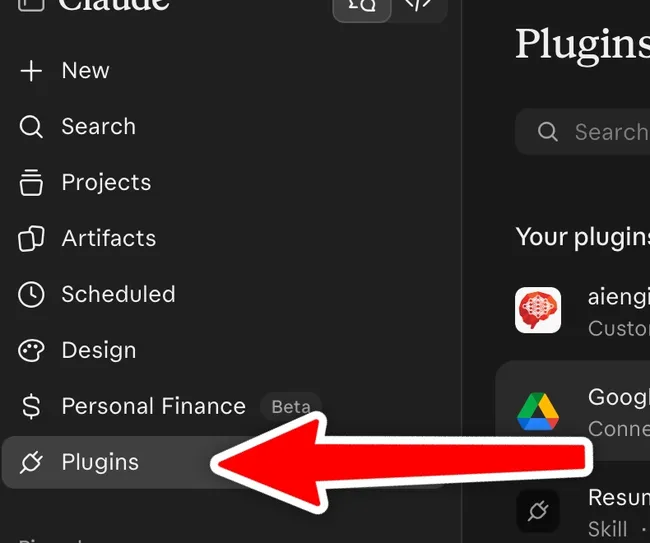
On [claude.ai](https://claude.ai), open **Plugins** in the sidebar.
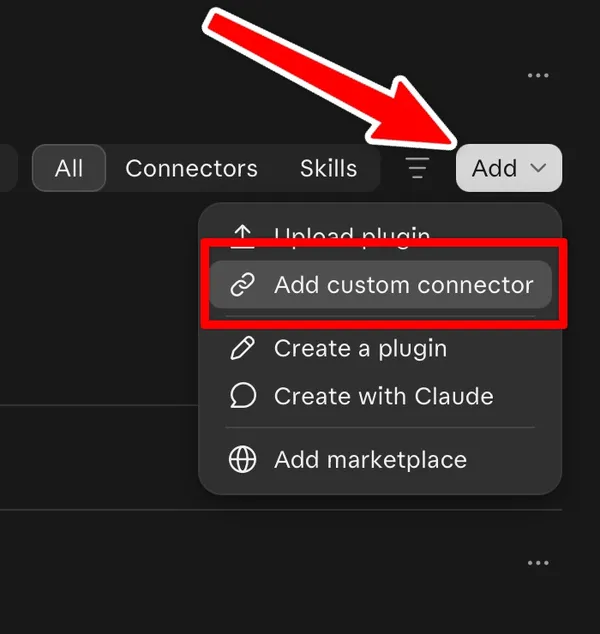
Open **Add** and choose **Add custom connector**.
Paste these values into Claude’s two fields, then click **Continue**.Connector name: Allied Healthcare JobsServer URL: https://alliedhealthcarejobs.com/mcp
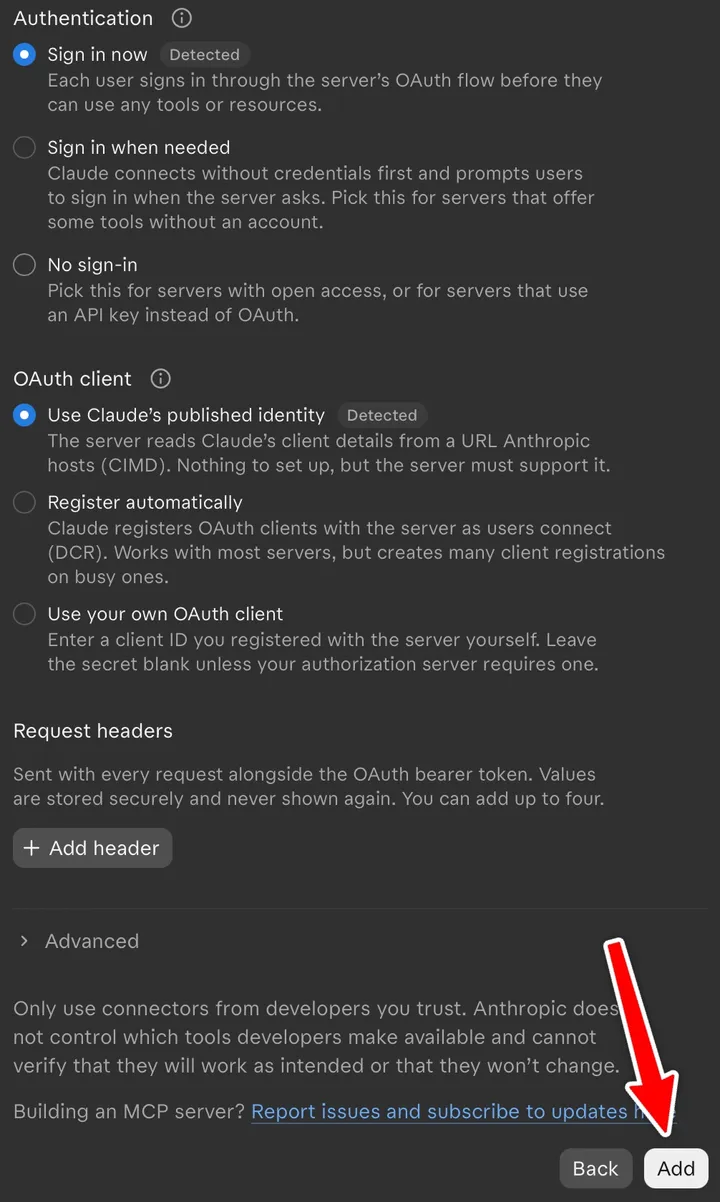
Select **Sign in now** and **Use Claude’s published identity**, then click **Add**.
Claude opens Allied Healthcare Jobs. Sign in and click **Connect**. If Claude shows a **Connect** button first, click that one too.
In a chat, click **+**, then **Connectors**, and turn on **Allied Healthcare Jobs**.
Once connected, help me test it by searching for a job.
Manual setup
-
On claude.ai, open Plugins in the sidebar.
-
Open Add and choose Add custom connector.
-
Paste these values into Claude’s two fields, then click Continue.
Connector name Allied Healthcare JobsServer URL https://alliedhealthcarejobs.com/mcp -
Select Sign in now and Use Claude’s published identity, then click Add.
-
Claude opens Allied Healthcare Jobs. Sign in and click Connect. If Claude shows a Connect button first, click that one too.
-
In a chat, click +, then Connectors, and turn on Allied Healthcare Jobs.
Grok also calls it a connector. Add it on the Grok website.
-
On a computer, open grok.com/connectors. Click New Connector, then Custom.
-
Name it Allied Healthcare Jobs and paste your AI connector address.
-
Grok opens Allied Healthcare Jobs. Sign in and click Connect.
Claude Code
Section titled “Claude Code”Add it for all your projects with one command. Claude Code signs in through your browser.
-
Run this command in your terminal.
Terminal window claude mcp add --transport http --scope user alliedhealthcarejobs https://alliedhealthcarejobs.com/mcp -
Start Claude Code with
claude. Run/mcpand pick alliedhealthcarejobs. -
Your browser opens Allied Healthcare Jobs. Sign in and click Connect.
Add it with the Codex command line, then sign in through your browser.
-
Run this command in your terminal.
Terminal window codex mcp add alliedhealthcarejobs --url https://alliedhealthcarejobs.com/mcp -
Then sign in.
Terminal window codex mcp login alliedhealthcarejobs -
Your browser opens Allied Healthcare Jobs. Sign in and click Connect. Run
codex mcp listto check the connection.
Configure manually
You can also add it to your config file, then run the sign-in command.
[mcp_servers.alliedhealthcarejobs]url = "https://alliedhealthcarejobs.com/mcp"Example requests
Section titled “Example requests”Paste one of these into your AI app to try the connection.
Find Medical Assistant jobs near me that list the pay.What's new on Allied Healthcare Jobs this week?Get the application link for the first job.I applied to that one. Mark it as applied.Send my Scout picks at 7 AM.Pause Scout for now.Access and credits
Section titled “Access and credits”After you approve a connection, your AI app can search jobs, read job and company details, retrieve application links, mark jobs as viewed or applied, and manage your Scout preferences. It can’t read or change your resume, submit applications, or access data outside Allied Healthcare Jobs.
Your account gets 1,000 credits a day, shared across your connected apps. Searching and Quick Apply jobs are free. The first time you unlock external application links for a role, you spend 20 credits. That unlock covers all listed locations for the role and carries over when your credits refill at midnight UTC.
See or disconnect your apps under AI Connections. A connection expires after 30 days without use.
Troubleshooting
Section titled “Troubleshooting”I can’t find the custom plugin or connector button
Section titled “I can’t find the custom plugin or connector button”Your AI app plan or work account may restrict custom connectors. Try Claude’s free plan, which includes one custom connector, or ask your workspace admin.
The app says I need premium access
Section titled “The app says I need premium access”Sign in with the Allied Healthcare Jobs account you use for premium membership.
My connection stopped working
Section titled “My connection stopped working”Check AI Connections to see if your app is active. Add the connection again from the app if it has expired.
The app says I’m out of AI credits
Section titled “The app says I’m out of AI credits”You can still search for jobs. Credits refill daily and are used for new application links on other company sites.
Get setup help
Section titled “Get setup help”Contact support for help with setup. Sign in or create a free account to reach the support page. We reply within one business day.